Basic Troubleshooting Techniques
The computer goes blank before the Word document was saved. The browser window freezes for no reason. You can't hear anything from your speakers.Most people have at one time or another experienced a computer problem like the situations just described, and if you haven't, chances are you will at some point. When a problem occurs, don't panic! Instead, work your way through some basic troubleshooting techniques and try to solve the problem.
General Tips to Keep in Mind
There are many devices, parts, cords, and connections on a computer, which means that there are many possible problems that could arise. In addition, your computer uses a variety of software, which can also cause problems. However, no matter what the problem is, you can use the following tips to help you find a solution:

- Always check the cables: Many computer problems are related to an issue in the cables and connections. The easiest first step you can take to troubleshoot most problems is to check all related cables and connections.
- Isolate the problem: If possible, try to isolate the problem. For example, if you can't get the cursor to move on the screen, try to determine if the issue is with the mouse. If you have an extra mouse, you can alternate devices to see if the one plugged in is the issue, or use the arrow keys on the keyboard to help determine if the mouse is the source of the problem. When trying to isolate the problem, only make one change at a time.
- Take notes about error messages: If your computer gives you error messages, be sure to write down as much information as possible. If the basic troubleshooting steps don't work, you may need the information.

- Remember the steps you've taken, or write them down: Once you start troubleshooting, you will want to remember what you have done, so you don't repeat yourself. If you can't remember it, then write it down. If you end up asking someone for help, it will be much easier if they know exactly which steps you've taken.
Simple Solutions to Common Problems
Most of the time, problems can be fixed by using simple troubleshooting techniques, such as closing and re-opening
the program. It's important to try these simple solutions before
resorting to more extreme measures. If the problem still isn't fixed,
you can then try other troubleshooting techniques, such as reinstalling
the software.
Program Runs Slowly or Isn't Working Right
- If a program is running slowly or otherwise isn't working right, the first thing you should try is closing the program and re-opening it.
- You can also shut down your computer, wait a few seconds, and boot it up again. Some minor problems will work themselves out when you do this.
- Check with the company for any known problems or updates to the software.

Program is Completely Unresponsive
- If a program has become completely unresponsive, you can press (and hold) Control+Alt+Delete on your keyboard to open the Task Manager. You can then select the program that isn't working and click End Task. If you are using a Mac, you can press Option+Command+Esc to open a similar dialog box.

Problems Starting or Shutting Down the Computer
Power Button Will Not Start Computer
- If your computer does not start, begin by checking the power cord to confirm that it is plugged securely into the back of the computer case and the power outlet.
- If it is plugged into an outlet, make sure it is a working outlet. Often, this will require you to plug a lamp or other electrical device into the outlet to make sure it is receiving power.
- If the computer is plugged into a surge protector, verify that it is turned on. You may have to reset the surge protector by turning it off and then back on. You can also plug a lamp or other device into the surge protector to verify that it is on.
- If you are using a laptop, the battery may not be charged. Plug the AC adapter into the wall and then try to turn on the laptop. If it still doesn't start up, you may need to wait a few minutes and then try again.

"Non-System Disk or Disk Error" Message
If you get this message when you boot up your computer, it usually means there is a CD, DVD, USB flash drive, or floppy disk in your computer, which is interfering with your computer's booting process. Remove the disk from the drive and restart the computer.

Windows Shutting Down Message Will Not Disappear
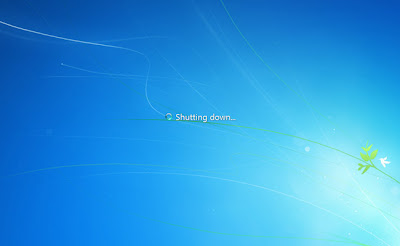
Sometimes Windows will freeze during the shutdown process. If this happens, the Windows is Shutting Down message screen will stay active on your screen. To finish shutting down the computer, press and hold the power button for about 10 seconds, or until the computer turns off.

Computer Begins Randomly Rebooting or Crashing
- Check for overheating. Make sure the vents in the case are not blocked. Confirm that there is good air flow around the computer. Update your antivirus software and scan for viruses.


Problems with the Monitor and Speakers
No Picture on the Monitor
- Confirm the computer is turned on.
- Check the brightness
control, located on your monitor or your keyboard, and make sure
it is not set too low.
- Check the connections for the monitor
and surge protector, and make sure the surge protector is
turned on.

Monitor Goes Blank Periodically
- You may have the screensaver enabled. If the screen saver is enabled, just move your mouse back and forth and your original screen will appear. You can change the screensaver settings by going to your Control Panel (or your System Preferences if you're using a Mac).

No Sound
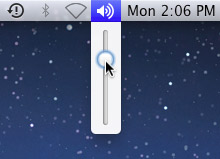
- Check the volume control
on your computer. In Windows, the sound icon will usually be on the
taskbar, and you can also access the sound options in the Control
Panel. On Macs, the sound options are found at the top of the
screen or in System Preferences.
- Most media programs (such as iTunes
or Windows Media Player) have a volume control,
which will need to be turned up.
- Make sure the speakers
are turned on, if using external speakers.
- Make sure external speakers are connected
to the correct audio port or a USB port. If your computer has color-coded
ports, the audio output will usually be green.
- Connect headphones to the correct audio
port and determine if sound is audible from the headphones.
Solving More Difficult Problems
If you still haven't found a solution to your problem, you may need to ask someone else for help. Try searching the web for the problem that you're having, as other people may have had similar problems. Also, if you have a friend or family member who knows a lot about computers, they may be able to help you.
Keep in mind
that most computer problems have simple solutions, although it may take
some time to find them. For very difficult problems, a more drastic solution
may be required, such as reformatting your hard drive, reinstalling
programs, or reinstalling your operating system. If you're not a
computer expert, it's possible that you could make the situation worse,
so it's best to consult a professional if you think a drastic solution is needed.
M. Iqbal Akhtar


